Share your results and collaborate with your peers
In this section, we will see how to use Renku to collaborate on projects. For an overview on collaboration, see Collaborating on Renku.
Discussions with Issues
Let us start by going back to the Renku web interface on renkulab.io or
whichever instance you are using for this tutorial. Make sure you are logged
in, so you can see your projects list by clicking on Projects in the top
navigation bar.
Click on your flights-tutorial project to open it and then go to the
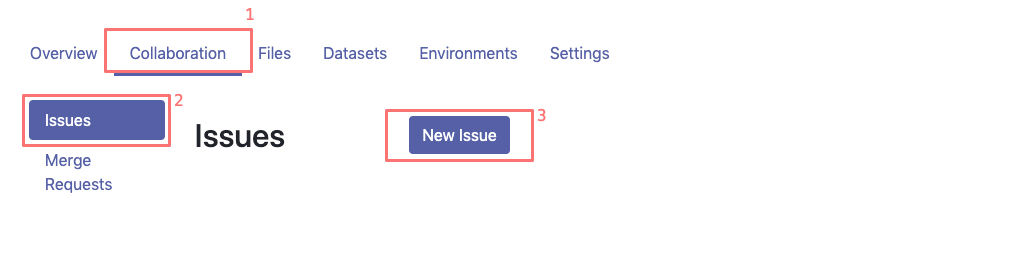
Issues sub tab (2) of the Collaboration tab (1). It is probably empty
at the moment, so let us start a new discussion by clicking on the
New Issue button (3).
In the New Issue form, fill in the Title and Description as follows.
Title: Data source
Description: Where does the data come from?
Do not change the Visibility and click on Create.
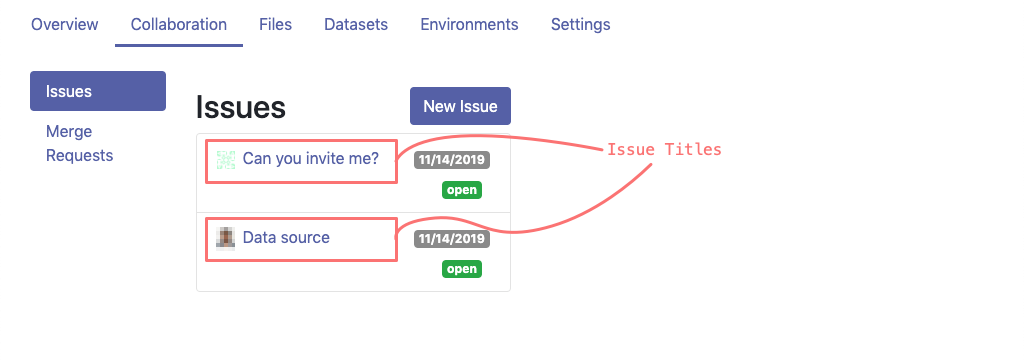
The Issues sub tab should now list the newly created issue.
In Renku, issues are media-rich discussions you can use to help keep track of your work and to collaborate with others.
To participate in a given issue and add comments, click on the title.
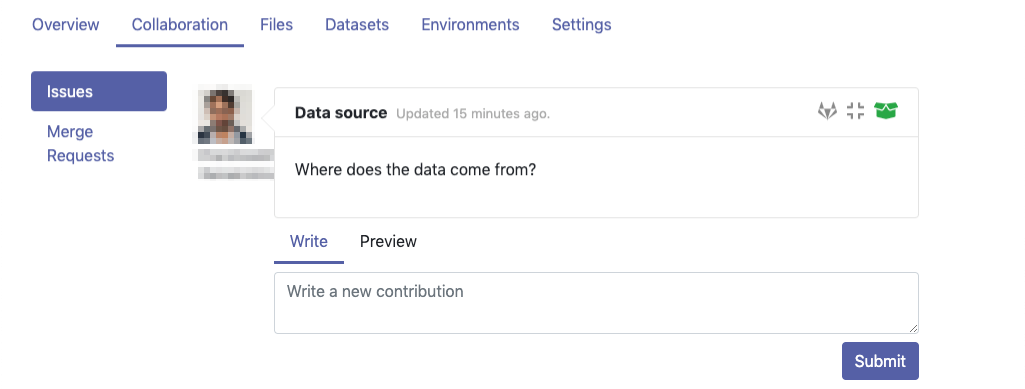
This will display the thread of comments from the selected issue. To write something and add it to the discussion, use the text box and click submit.
The comments are entered using the Markdown format (cheatsheet here). You can also embed notebook files and markdown files to have them rendered in-line in the issue body or comment. The syntax is as follows:

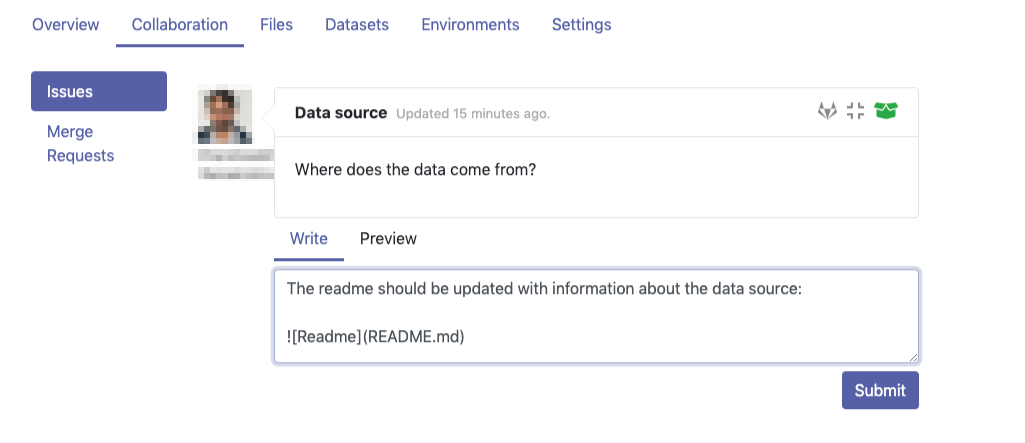
Let us try this with our question about where the data is coming from. Copy and paste the following text in the text box and hit Submit.
The readme should be updated with information about the data source:

Now, you can use Launch JupyterLab to open and edit the README.md file.
You can mention that the data comes from the US Dept. of Transportation,
Bureau of Transportation Statistics, with a link to its home page:
https://www.transtats.bts.gov
To update the repository after changing the README.md file, open a console
by clicking on the ‘+’ button and then selecting Terminal.
Use git to save your changes:
git add README.md
git commit -m"Added data source information to the Readme"
git push
Now that the README.md file has been updated, we can Close
the issue (1).
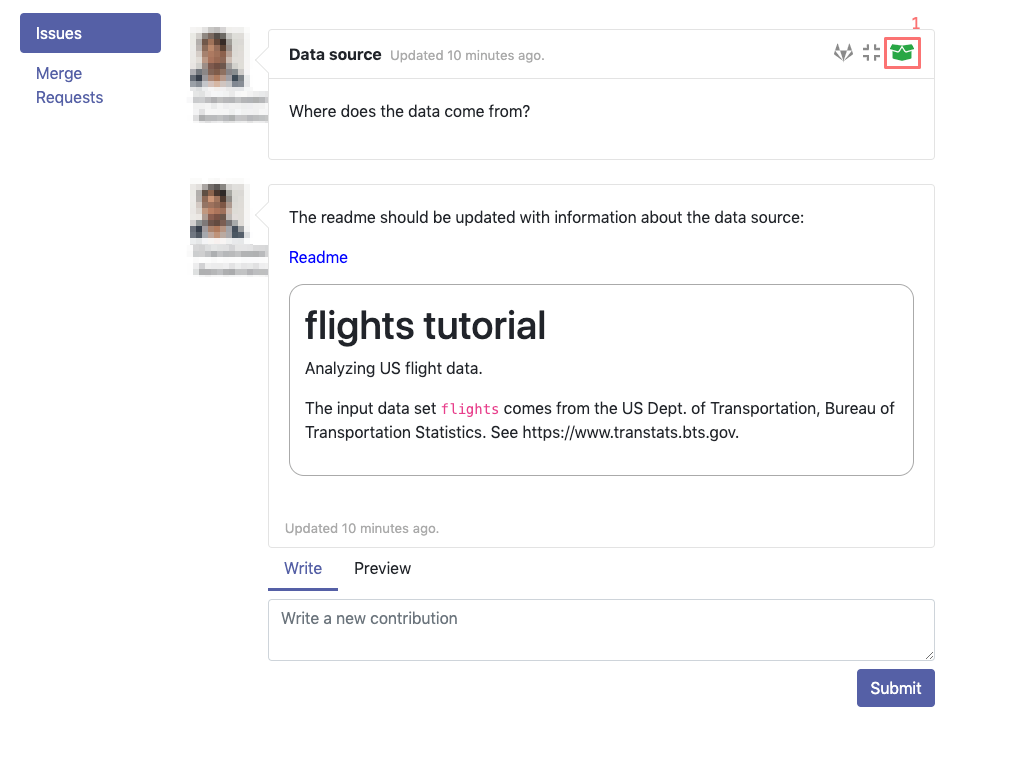
Doing so indicates that the corresponding discussion is closed. This can be useful to sort discussions and find out what is currently work-in-progress and what has been completed within the project.
Now, let us create another issue and embed a notebook in the discussion.
Title: General data exploration
Description: First look at the dataset
Add a comment with the following content:
Let's explore the dataset! Here is what we know:

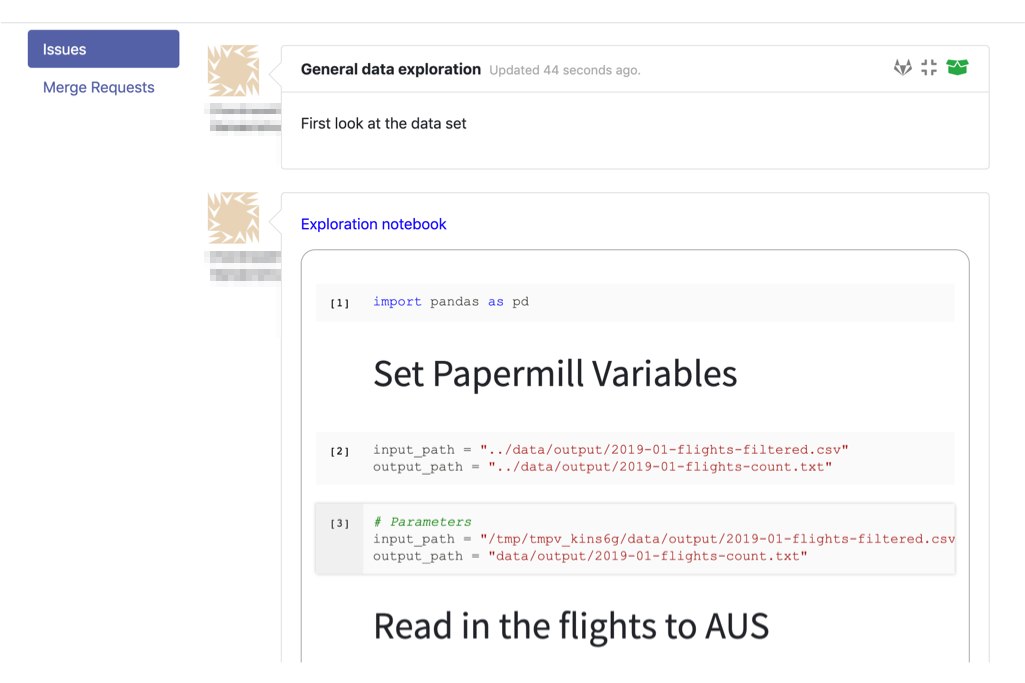
After creating the issue, you will see the contents of the notebook displayed in the comment. You can collapse/expand the notebook display by clicking on its title in blue.